Specifying project configuration
Imported from Confluence (source, last edited 2015-05-13). Screenshots are the old UI — flag for GIF/clip re-capture.
The configuration panel allows managing users and permissions. Also, a tool for translating semantic tags is included. All these capabilities are shown in tables of preference settings.

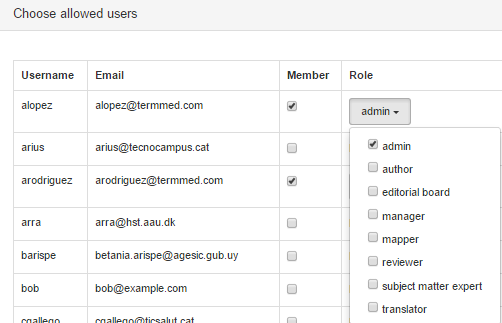
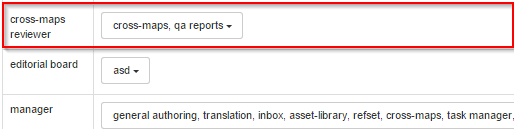
Users names with their emails are shown in a table that also includes checkboxes for project membership and roles. Roles are listed in a table that shows existing roles and a drop-down to select roles for a given user. In addition, a column of this table details which users are playing a specified role. Finally, Semantic tags setting shows a table that enables semantic tag translation to a target language for all those extensions that translate SNOMED CT’s fully specified names.
Step-by-step guide
-
Click Configuration panel to open configuration tool.
-
In Users setting, click No role drop-down to select user role(s)
-
Click Roles setting to open role configuration.
-
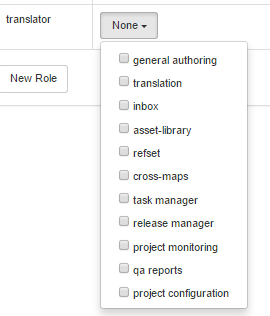
In Roles setting, click None drop-down to display available roles for a given user
-
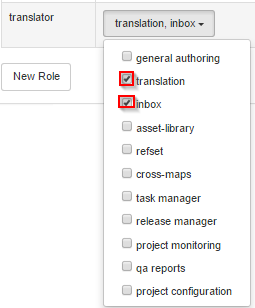
Check permissions for the selected role
Note:
A user with Translation and Inbox permissions will be able to open Inbox and Translation Editor only.
6. Click New role to specify a new role and complete new role requirements, including allowed activities, by selecting checkbox(es) that apply.
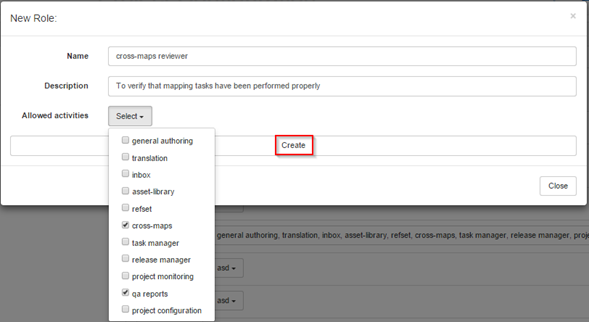
7. Click Create and then Close to see the new role in the table.
8. Click Save changes; otherwise, any changes will be lost.
-
Click Semantic tags setting to open semantic tags table configuration.
-
Translate semantic tags according to your language rules.

-
Click Save changes; otherwise, any changes will be lost.