Right panel — concept tabs
Consolidated from Confluence (Concept Editor - Right panel, Designation tab, Axioms tab, Expression tab, Diagram tab, Refsets tab, Members tab, References tab, History tab). Screenshots are the old UI — flag for GIF/clip re-capture.
Concept Editor - Right panel
This panel contains twelve tabs for different editing functions:
- Summary
- Details
- Designation
- Axioms
- Diagram
- Expression
- Refsets
- Members
- References
- History
- Graph
- Metadata
Concept details bar
This bar is visible with any tab selected and consists of the following:
- The Concept tags icon displays any metadata tag assigned to a concept.

- The Clock will open the history of concepts selected in the current session.
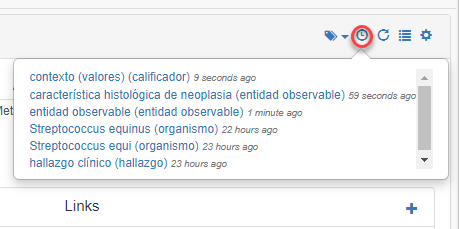
- Any tab open will be refreshed by clicking the Refresh icon (
 )
- The Shortcuts icon will display the available keyboard shortcuts you can use to perform different functions.
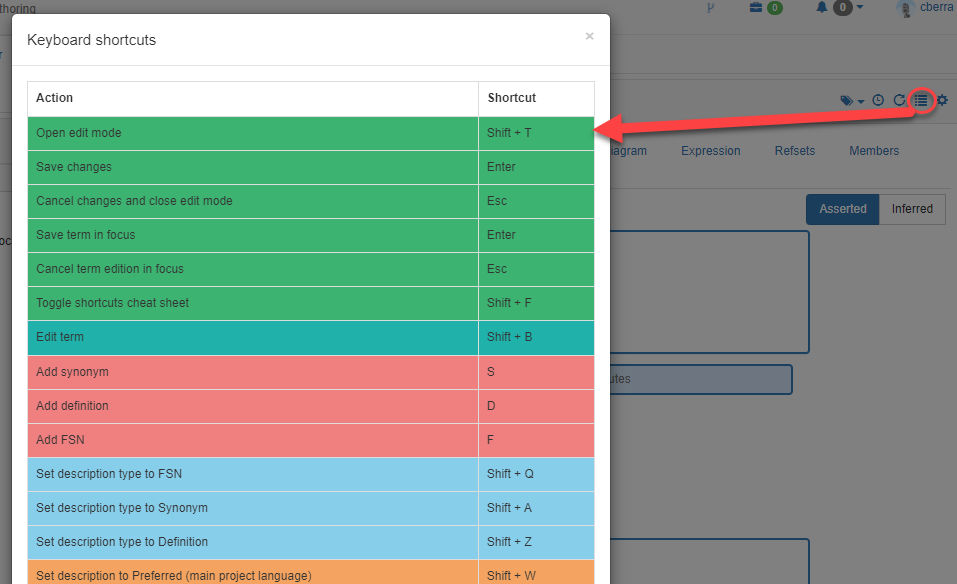
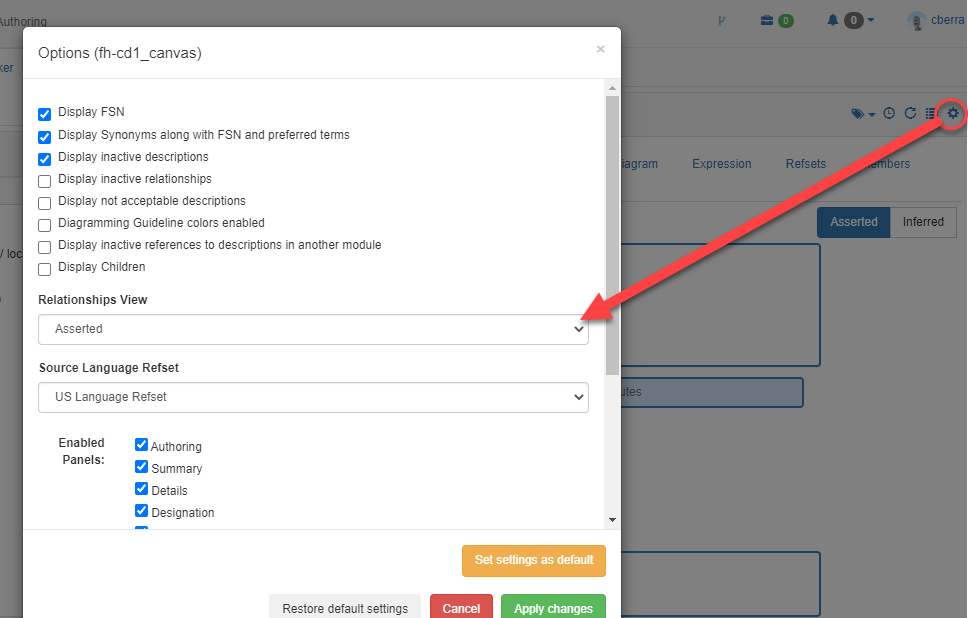
- Clicking Options icon will open a modal window displaying different parameters for visualizing concept components that may be selected by the user.
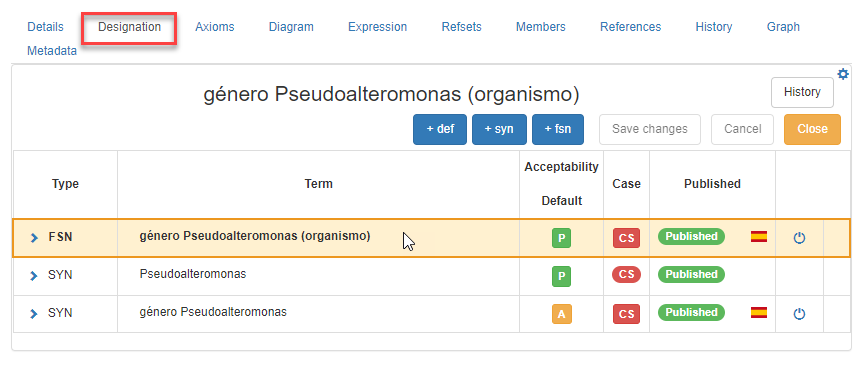
Designation tab
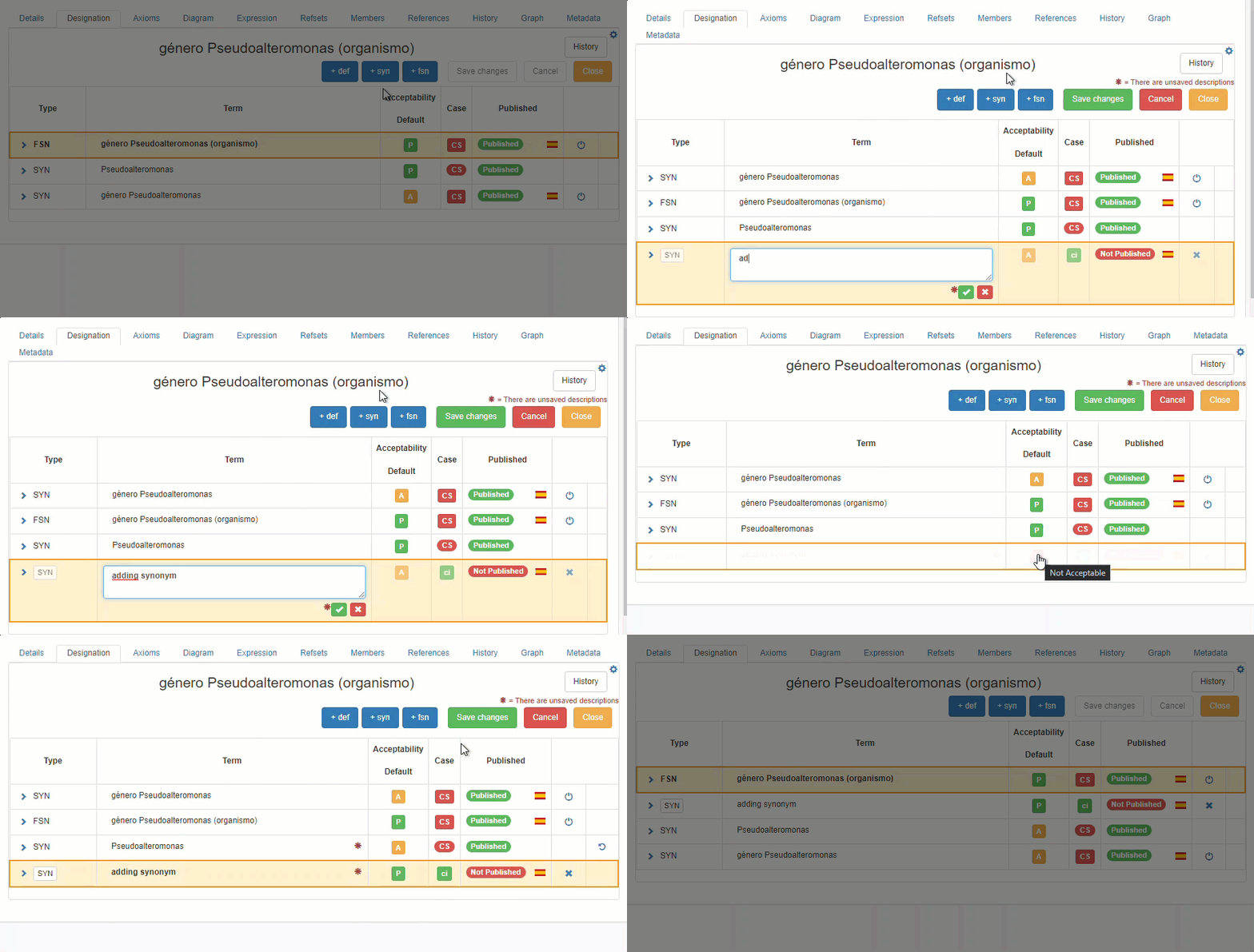
This tab is used for editing descriptions, either fully specified names, synonyms or text definitions. All descriptions of a given concept are shown, i.e. in the local language refset, the EN-US language refset, as well as descriptions not belonging to any of them and retired descriptions. New descriptions may be added and descriptions from user's own language refset may be changed (acceptability, case sensitivity) or retired. Also, descriptions from other language refsets may be changed to acceptable in user's language refset. (For further information see How-to articles, Editing new descriptions)
 With the blue button +def it is possible to add a Text Definition to a concept; with the +fsn button a Fully Specified Name for a new concept can be added; and with the +syn button, a description may be added, which can be selected as Preferred Term (P) or and acceptable synonym (A). All changes must be saved in order to continue editing.
Axioms tab
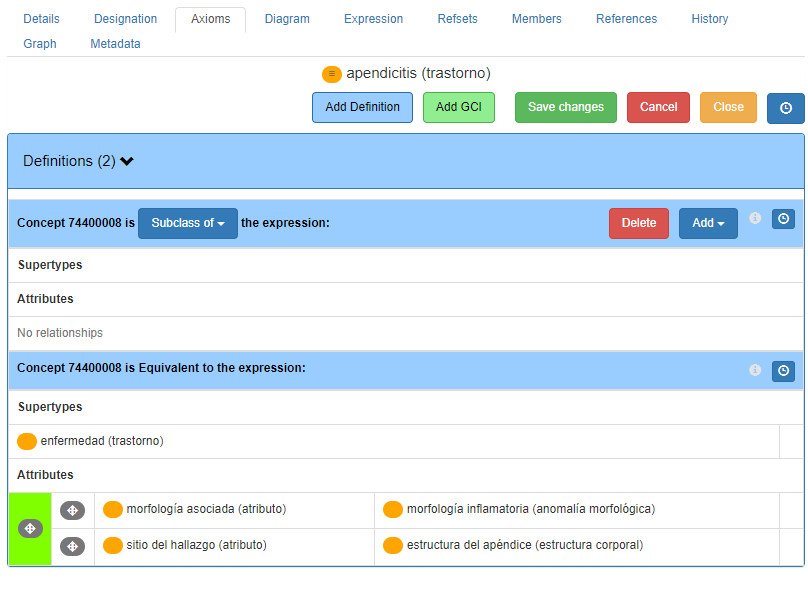
Each concept in SNOMED CT is logically defined through its relationships to other concepts. Every active SNOMED CT concept (except the SNOMED CT Concept Root concept) has at least one | is a | relationship to a supertype concept. | Is a | relationships and defining attribute relationships are known as the defining characteristics of SNOMED CT concepts. They are considered defining because they are used to logically represent a concept by establishing its relationships with other concepts. This is accomplished by establishing | Is a | relationships with one or more defining concepts (called supertypes) and modeling the difference with those supertypes through defining attributes.
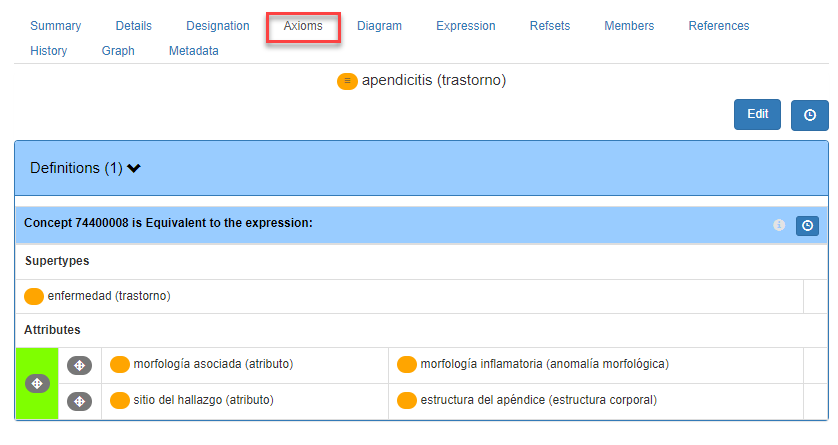
This tab is used for editing relationships, either supertype-subtype relationships and attribute relationships. See Editing new relationships for further information on relationships edition.
Expression tab
SNOMED CT expressions are a structured combination of one or more concept identifiers used to express an instance of a clinical idea. A single concept value is the simplest type of expression, which is referred to as a precoordinated expression.
Notations used in this tab:
 Sufficiently defined concept
 Primitive concept
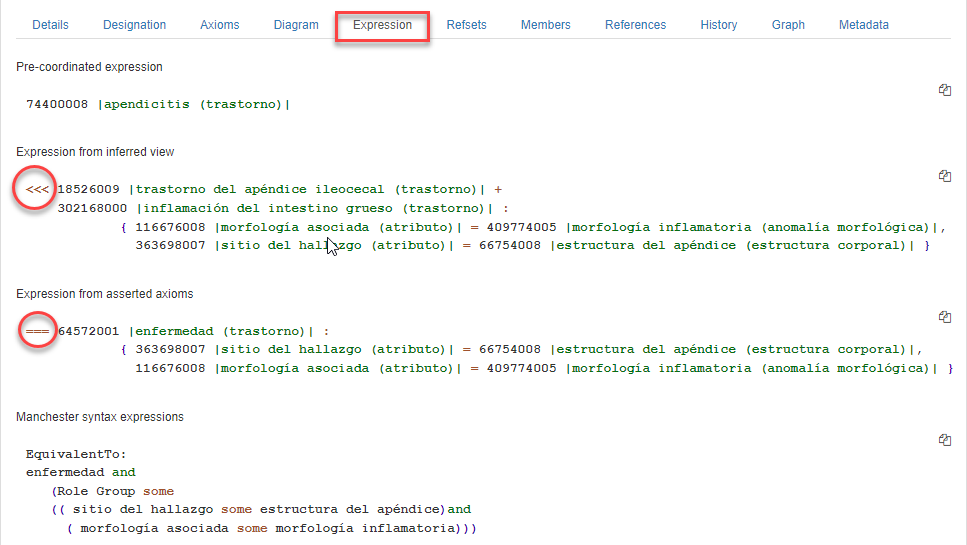
Diagram tab
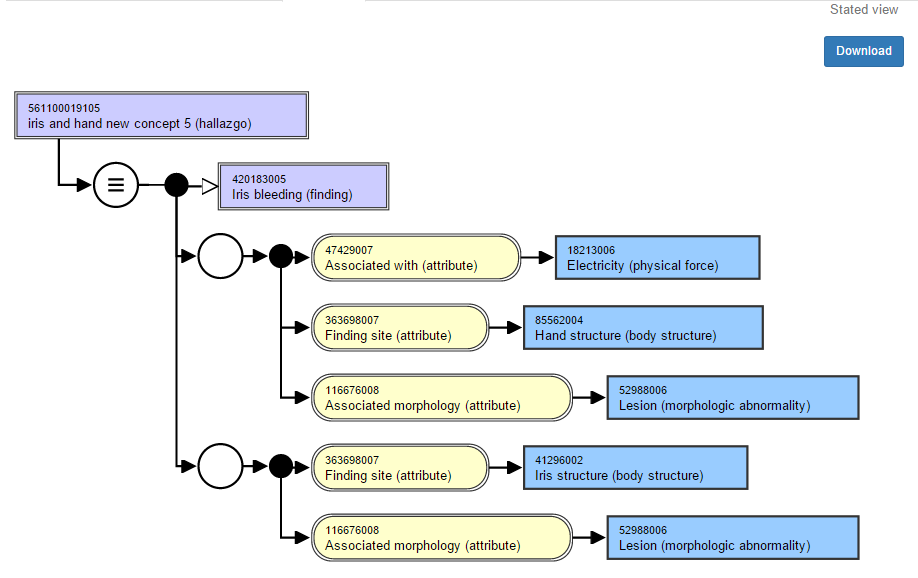
This tab shows a standardized representation of concept definitions in accordance with SNOMED CT Diagramming Standard. This consists of:- the concept whose definition is being shown at the top left
- connected to a series of one or more relational operators to an expression
Diagram elements
-
Concepts: Concepts are represented by a box containing the concept name.
 The light blue box represents primitive concepts
 The light purple box with a double-line represents suficiently defined concepts
-
Relationships or attributes are represented using a rectangle with rounded ends and a double-line border:

-
**IS-A (subtype) relationships **are represented with an open-headed arrow:

-
Equivalent to:

-
Attribute groups are represented with a circle:

-
A conjunction is represented with a black “dot” (black filled small circle). It is only necessary when two or more attributes are being joined in a diagram. It is optional when attaching a single attribute:

-
An arrow is used to connect related elements where the connection is unidirectional. Connecting arrows always have an arrow head at one end, and therefore have an explicit direction from one element to another:

-
A line is used to connect elements in the diagram where the connection is bidirectional:

According to this diagramming standard, a complete concept definition is represented as:
Refsets tab
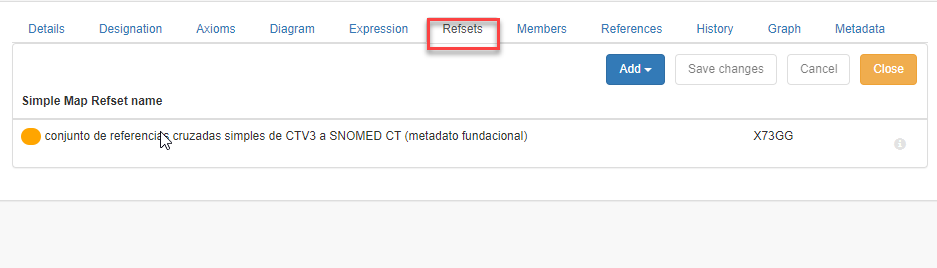
This tab lists refset(s) to which a concept belongs and its value(s). Additional refsets to which the concept belongs can be added.
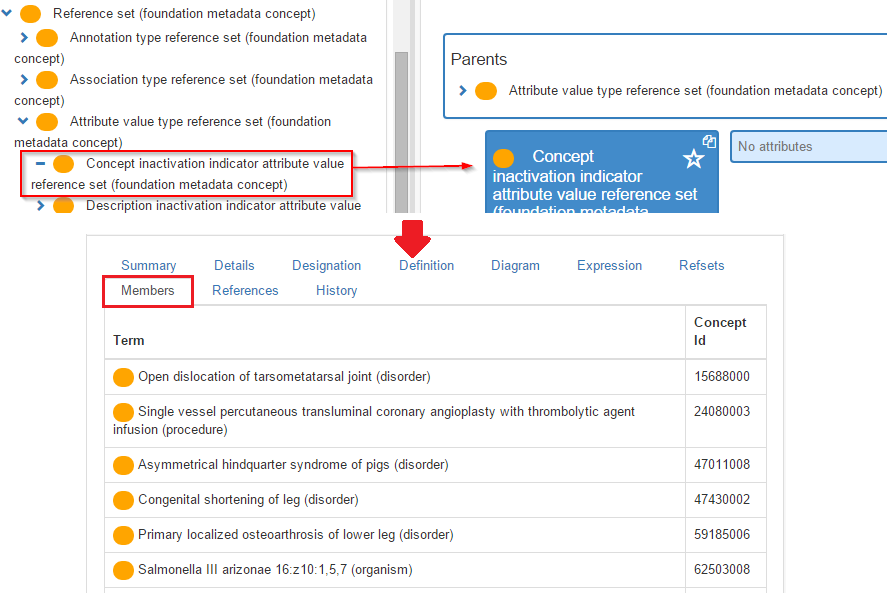
Members tab
This tab shows a list of refset members. The selected concept should be a subtype of 900000000000455006| Reference set (foundation metadata concept) |
References tab
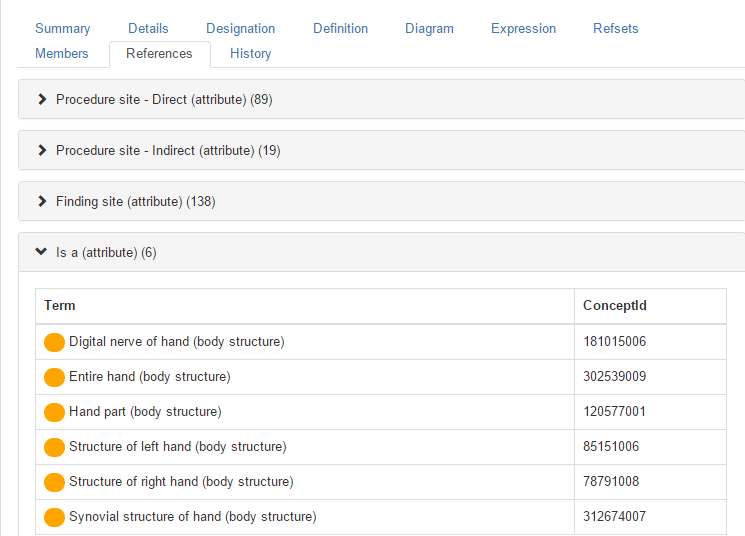
This tab shows a list of how many times a given concept is referenced, either in supertype/subtype (IS_A) or attribute relationships. In the example shown below, the concept 85562004 |Hand structure (body structure)| is referenced as:
- the parent of 6 concepts (i.e., it is linked to six children concepts by IS_A relationships)
- the finding site (attribute) value of 138 concepts
- the procedure site - direct (attribute) value of 89 concepts
- the procedure site - indirect (attribute) value of 19 concepts
In each case, clicking Greater than icons will display the list of concepts referencing the selected concept.
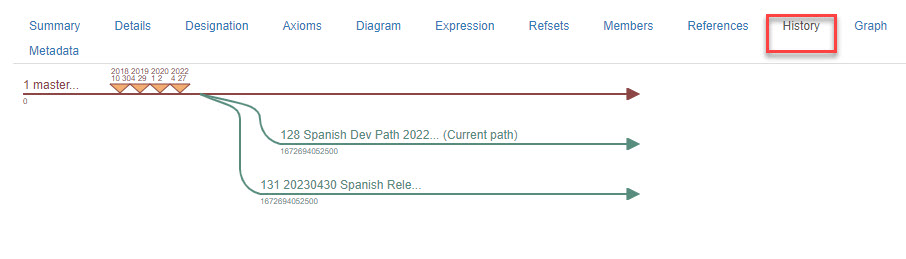
History tab
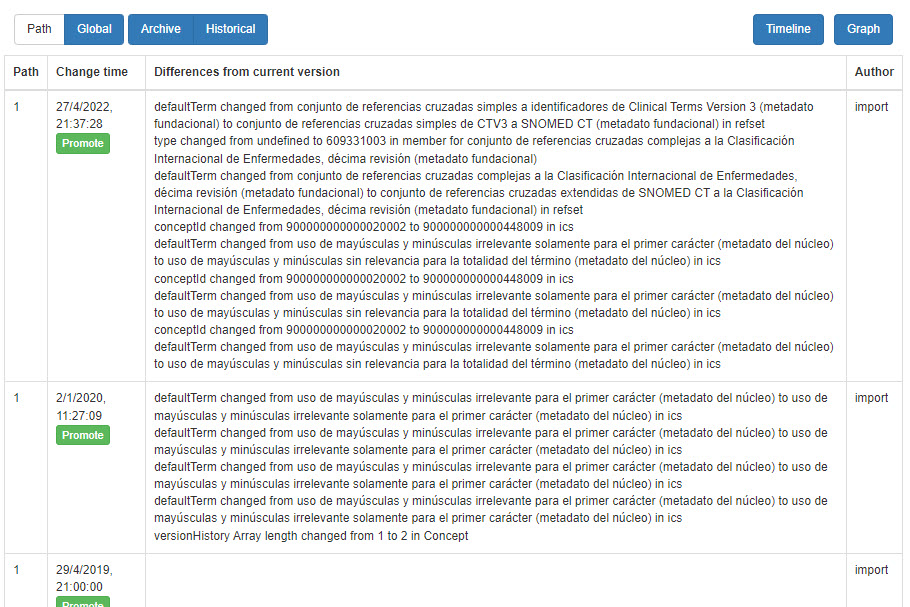
The History tab keeps track of the whole development path of each concept and displays each and every modification it was subjected to.