Editing new relationships
Imported from Confluence (source, last edited 2015-06-15). Screenshots are the old UI — flag for GIF/clip re-capture.
This tab is used for editing relationships. Either supertype/subtype relationships or attribute relationships may be created in this tab
Step-by-step guide
-
Click Edit to open editing interface
-
Click Add to select a relationship type

-
For attribute relationships: select a type concept from the tree.
Info:
Both for relationship types and for their ranges of allowed values the tree view is opened by default. However, a search tab is available when a specific concept is needed.
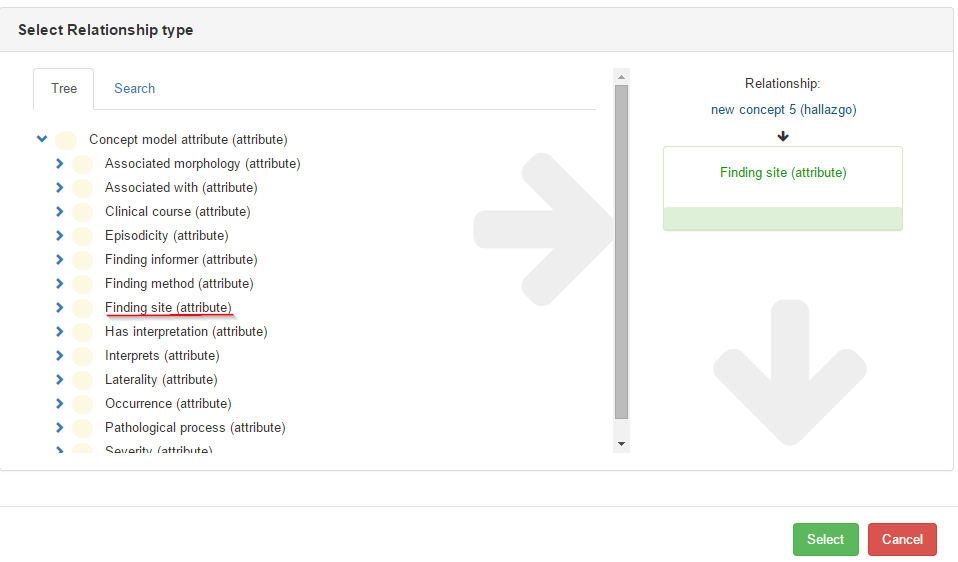
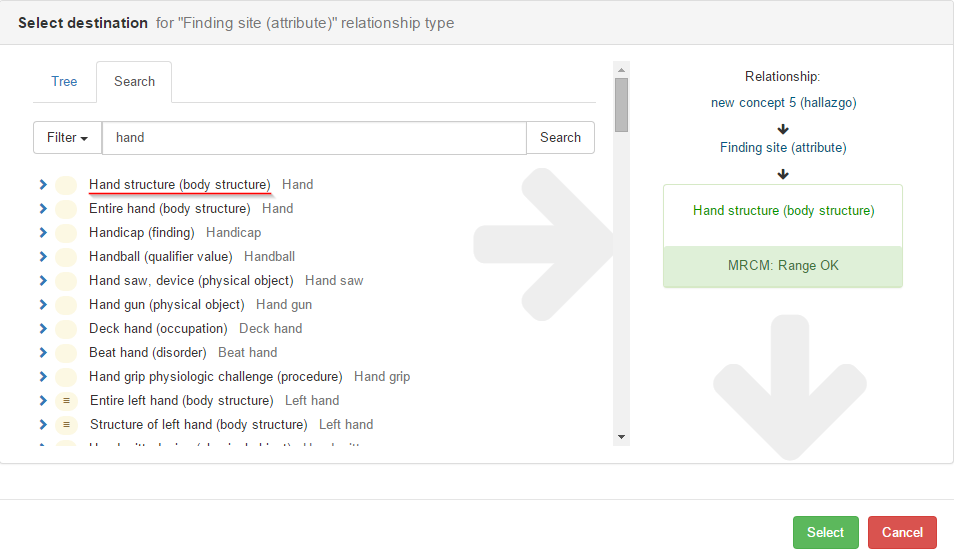
4. Press Select to confirm your selection and choose a destination for your relationship type, either from the tree or search for one.
Warning:
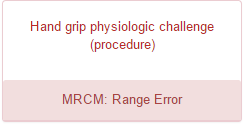
For any relationship type, when a selected destination concept is not within the allowed range an error message is shown.
5. For supertype relationships: select a destination for Is_a (attribute) from the tree
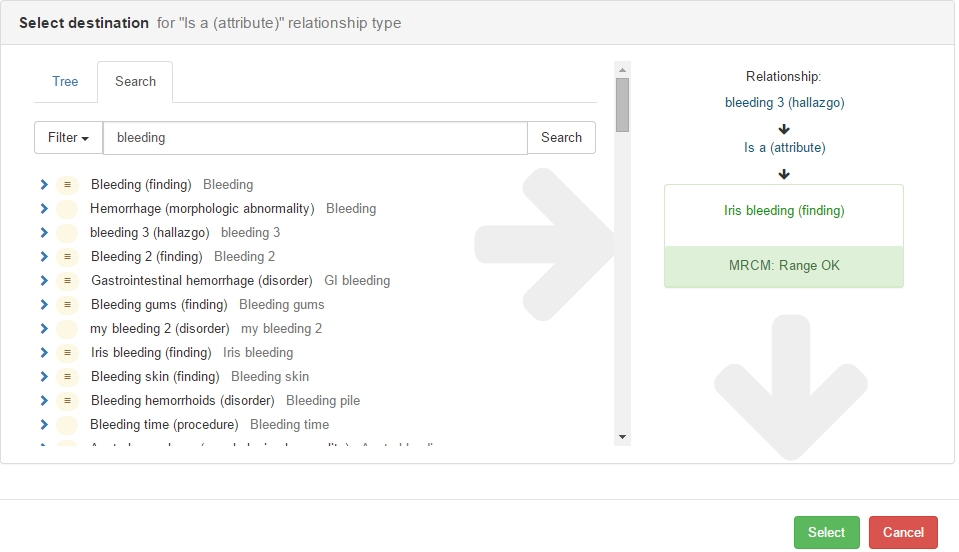
6. Press Select to confirm your selection
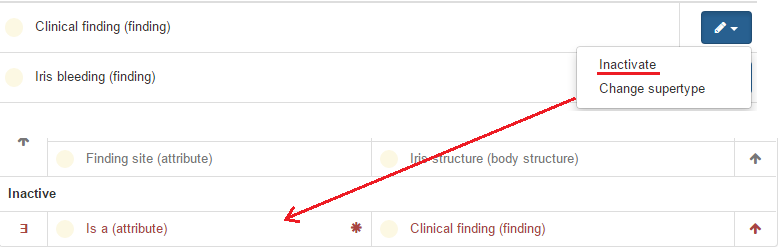
- Click the pencil icon to change or inactivate a supertype.
Info:
A supertype can only be changed if the existing supertype has not been published. For already published supertypes, an existing parent should be inactivated to replace it for another one.
8. Click the right arrow of an inactive relationship to reactivate it.